Finding the best free video editing tools is not as simple as choosing the software with the longest feature list. A good free video editor should be genuinely usable without forcing you into an expensive subscription, while still providing the essential tools for cutting clips, adding text, improving audio, creating transitions, and exporting high-quality videos.
The good news is that several strong options are available in 2026. Some are designed for beginners, while others provide advanced color grading, multicam editing, visual effects, subtitles, and professional post-production features.
This guide compares the leading free video editing tools based on their current features, supported platforms, ease of use, export capabilities, watermark policies, and ideal use cases.
Quick answer: For professional editing, DaVinci Resolve Free is one of the strongest choices. For beginners, Clipchamp and OpenShot are easier to approach. CapCut is particularly useful for short-form and social-media content, while iMovie is an excellent choice for Apple users. Shotcut and Kdenlive are strong open-source alternatives.
Best Free Video Editing Tools at a Glance
| Video Editor | Best For | Platforms | Free Version | Watermark |
|---|---|---|---|---|
| DaVinci Resolve | Professional editing | Windows, Mac, Linux | Yes | No standard export watermark |
| CapCut | Social media & short videos | Windows, Mac, Web, Mobile | Yes | Depends on templates/features |
| Clipchamp | Beginners & Windows users | Windows, Web | Yes | No Clipchamp watermark |
| iMovie | Apple users | Mac, iPhone, iPad | Yes | No |
| Shotcut | Open-source editing | Windows, Mac, Linux | Yes | No |
| Kdenlive | Advanced open-source editing | Windows, Mac, Linux, BSD | Yes | No |
| OpenShot | Beginners & simple projects | Windows, Mac, Linux, ChromeOS | Yes | No |
The definition of “free” matters here. Some programs are completely free and open source, while others have free tiers alongside paid features. For example, Microsoft says Clipchamp’s personal free tier includes core editing tools and free stock media, with exports up to 1080p HD.
What Is the Best Free Video Editing Tool?
DaVinci Resolve Free is the strongest overall choice for users who want advanced editing capabilities without paying for professional software.
Blackmagic Design says the free version combines editing, color correction, visual effects, motion graphics, and audio post-production. It supports many 8-bit formats up to 60 fps and resolutions up to Ultra HD 3840 × 2160.
However, that does not mean DaVinci Resolve is automatically the best option for everyone.
A beginner making a five-minute YouTube video may prefer Clipchamp or OpenShot because they are easier to learn. A creator producing TikTok or Instagram videos may prefer CapCut because of its creator-focused workflow and AI features.
The best tool depends on what you want to create.
1. DaVinci Resolve Free — Best Overall for Advanced Editing
DaVinci Resolve is one of the most capable free video editors available. It is developed by Blackmagic Design and is widely associated with professional post-production.
The free version is not simply a basic trial. Blackmagic Design states that DaVinci Resolve Free includes editing, color, visual effects, motion graphics, and audio capabilities. It supports Ultra HD 3840 × 2160 resolution at up to 60 fps for supported 8-bit formats.
Key features
- Non-linear video editing
- Professional color grading
- Audio post-production
- Visual effects
- Motion graphics
- HDR grading
- Multi-user collaboration
- Ultra HD support
- Third-party plug-in support
- Advanced timeline tools
The biggest advantage is the amount of professional functionality available without purchasing the Studio edition.
Who should use DaVinci Resolve?
It is particularly suitable for:
- YouTube creators
- Filmmakers
- Professional editors
- Videographers
- Students learning professional editing
- Creators working with high-quality footage
- Users who want to develop advanced editing skills
The downside
DaVinci Resolve has a steeper learning curve than simpler editors.
If you only want to trim a video, add music, and export it quickly, the interface may initially feel overwhelming.
Best for: Professional and advanced video editing.
2. CapCut — Best Free Video Editor for Social Media
CapCut has become particularly popular among creators producing short-form content for platforms such as TikTok, Instagram and YouTube.
Its desktop version combines traditional editing controls with AI-oriented features such as automatic captions, smart search, auto-reframing, keyframes, color controls and script-to-video workflows.
Why CapCut is popular
CapCut is designed around fast content production.
Instead of requiring users to manually build every element from scratch, it provides:
- Templates
- Effects
- Transitions
- Captions
- Text animations
- AI-assisted tools
- Keyframes
- Aspect-ratio controls
- Social-media-oriented workflows
CapCut also supports desktop editing on Windows and macOS.
Does CapCut add a watermark?
This requires some clarification.
CapCut’s own support documentation says the editor can export videos without a watermark, but templates may include a branded ending clip or other branded elements. Those elements can be removed in appropriate projects.
However, some Pro templates and premium features can require a subscription for watermark-free export.
Therefore, it would be inaccurate to simply say “CapCut is always completely watermark-free.”
Best for
- TikTok videos
- Instagram Reels
- YouTube Shorts
- Social-media creators
- Beginners
- Fast editing
- Caption-heavy videos
Best for: Social media and short-form video.
3. Microsoft Clipchamp — Best for Beginners
Clipchamp is a practical choice for users who want a relatively straightforward editing experience.
Microsoft provides a free personal tier with core editing features and some stock media. Free users can export completed videos at up to 1080p HD.
One particularly useful detail is Microsoft’s watermark policy.
Microsoft states that Clipchamp does not add a visual or audio watermark to exported videos. However, premium stock media or premium features may prevent export unless the user upgrades.
Main advantages
- Beginner-friendly interface
- Windows integration
- Web-based editing
- Free 1080p export
- Stock media
- Templates
- Simple timeline editing
- No standard Clipchamp watermark
Who should use Clipchamp?
Clipchamp is a good choice if you are:
- New to video editing
- Using Windows
- Creating YouTube videos
- Making presentations
- Creating social-media content
- Editing basic promotional videos
Limitation
Users looking for advanced professional color grading, complex visual effects or high-end post-production may eventually outgrow Clipchamp.
Best for: Beginners and straightforward projects.
4. iMovie — Best Free Video Editor for Apple Users
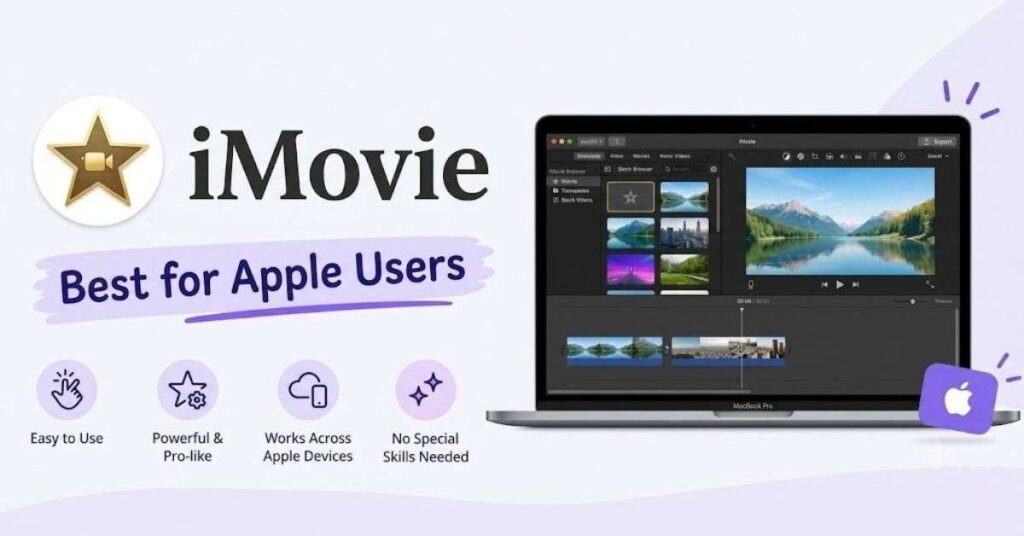
For people already using Apple’s ecosystem, iMovie remains one of the easiest free video editing solutions.
Apple says iMovie works on iPhone, iPad and Mac and supports 4K video. It includes trimming, transitions, titles, music, effects, picture-in-picture and split-screen functionality.
iMovie is ideal for
- iPhone videos
- Family videos
- Travel videos
- YouTube beginners
- School projects
- Simple 4K projects
- Mac users who want an easy workflow
Its biggest advantage is simplicity.
You do not need extensive video-editing knowledge to create a polished basic project.
Limitation
iMovie is not intended to compete with the full professional feature set of DaVinci Resolve.
Best for: Mac, iPhone and iPad users.
5. Shotcut — Best Open-Source Alternative for Flexible Editing
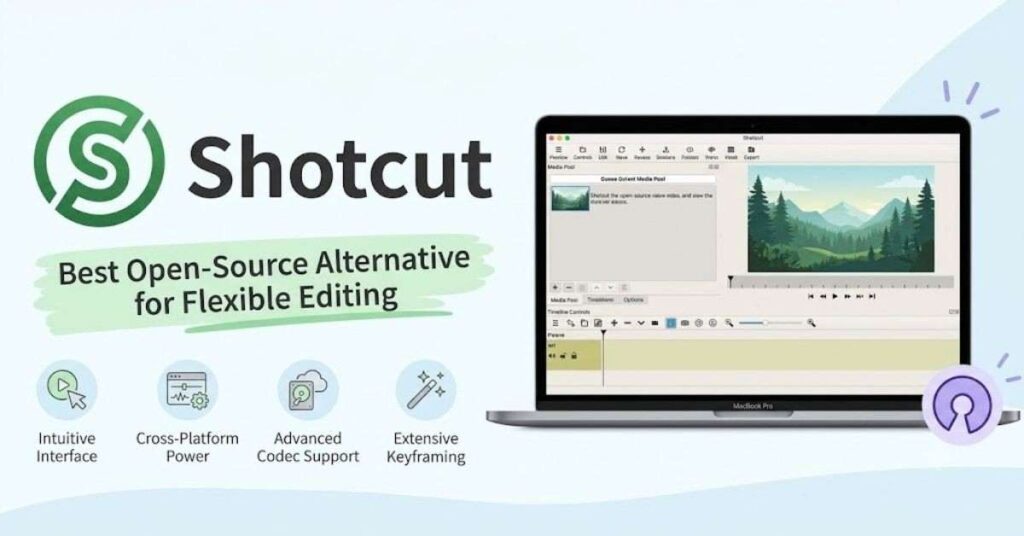
Shotcut is a free and open-source, cross-platform video editor.
Its official feature list includes broad format support through FFmpeg, native timeline editing, frame-accurate seeking for many formats, webcam and audio capture, and support for 4K and 8K resolutions.
Important features
- Open source
- Windows support
- macOS support
- Linux support
- Wide codec compatibility
- Multi-format timelines
- 4K and 8K support
- Webcam capture
- Audio capture
- Subtitle support
- Color tools
- Filters and effects
Shotcut is particularly interesting for users who want more control than beginner-oriented editors provide without moving to proprietary professional software.
Best for: Users who want a capable open-source editor.
6. Kdenlive — Best Free Open-Source Editor for Advanced Users
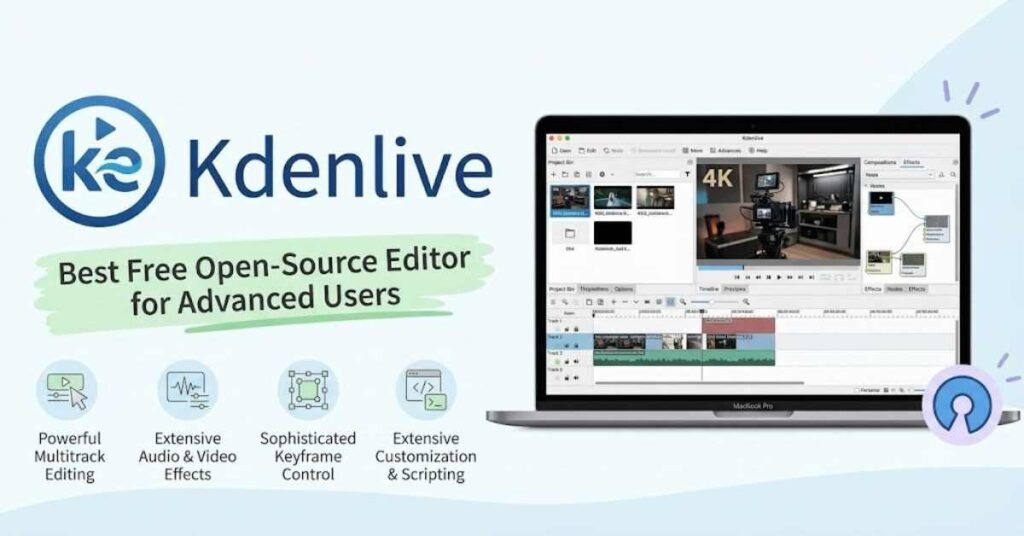
Kdenlive is another serious open-source video editing application.
The project supports Windows, macOS, Linux and BSD. Its current documentation describes features including multicam editing, proxy workflows, nested sequences, audio mixing, hundreds of effects, keyframes, color correction, subtitles and speech-to-text functionality.
Why choose Kdenlive?
Kdenlive makes sense for users who want:
- Multi-track editing
- Multicam workflows
- Advanced effects
- Color correction
- Audio mixing
- Subtitles
- Proxy editing
- Keyframe animation
- Open-source software
It is more complex than OpenShot but provides substantially more room for advanced editing workflows.
Best for: Advanced users who prefer open-source software.
7. OpenShot — Best Simple Open-Source Video Editor
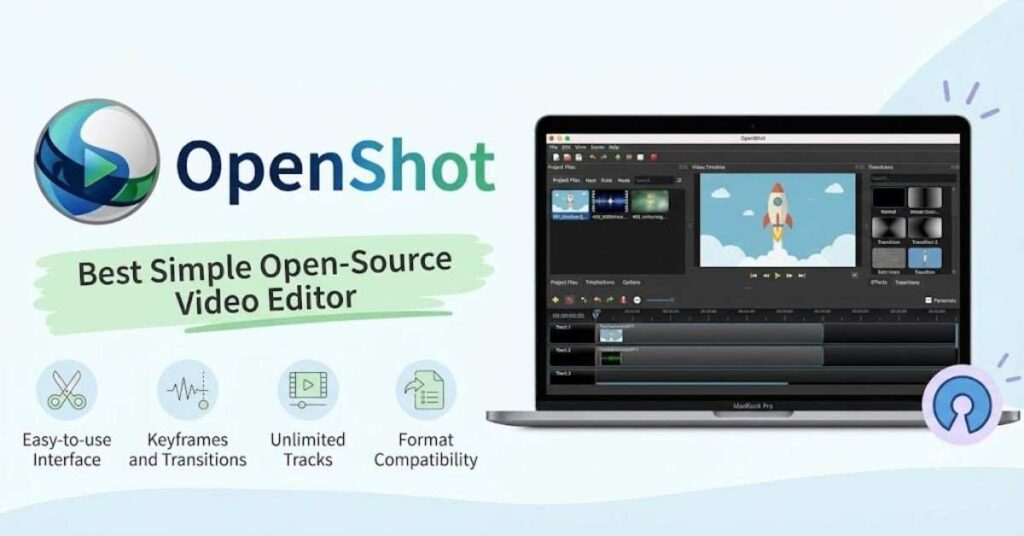
OpenShot is designed to make video editing approachable.
The project describes it as free and open source, with support for Windows, macOS, Linux and ChromeOS. Its current feature set includes timeline editing, keyframe animation, effects, transitions, titles, audio visualization, masking and recording capabilities.
OpenShot also states that it has no time limits, no size limits and no watermarks on finished videos.
Good for
- Beginners
- Simple YouTube videos
- Educational videos
- Basic social-media videos
- Slideshow videos
- Simple promotional content
Why choose OpenShot instead of DaVinci Resolve?
Because simplicity matters.
If your project does not require advanced color science, complex compositing or professional audio workflows, OpenShot can be easier to learn.
Best for: Beginners looking for genuinely free open-source software.
Best Free Video Editing Tools Compared
| Tool | Beginner Friendly | Advanced Features | 4K | Open Source | Best Use |
|---|---|---|---|---|---|
| DaVinci Resolve | Medium | Excellent | Yes | No | Professional editing |
| CapCut | Excellent | Very Good | Depends on platform/features | No | Social media |
| Clipchamp | Excellent | Basic–Intermediate | Paid-plan dependent | No | Beginners |
| iMovie | Excellent | Basic–Intermediate | Yes | No | Apple users |
| Shotcut | Medium | Very Good | Yes | Yes | Flexible editing |
| Kdenlive | Medium | Excellent | Yes | Yes | Advanced open-source editing |
| OpenShot | Excellent | Good | Yes | Yes | Simple projects |
Best Free Video Editing Software Without a Watermark
If no watermark is your primary requirement, pay attention to how each product actually handles free exports.
Strong choices include:
OpenShot: The project explicitly states that finished videos can be created without watermarks.
Clipchamp: Microsoft states that Clipchamp does not add its own watermark to exported videos, although premium assets/features can require an upgrade.
DaVinci Resolve: The free edition is a fully usable editing product rather than a conventional watermarked trial.
Shotcut and Kdenlive: Both are free/open-source editors, making them strong alternatives for users who want to avoid subscription-based editing software.
CapCut: Watermark-free exports are possible in many cases, but templates and Pro assets can introduce restrictions, so users should check the project before exporting.
Best Free Video Editor for Beginners
If you have never edited a video before, advanced features are not necessarily an advantage.
A beginner usually needs:
- Easy media import
- Simple timeline
- Drag-and-drop editing
- Basic trimming
- Text and titles
- Music
- Transitions
- Simple export settings
- Templates or presets
- Clear interface
For that reason, Clipchamp, iMovie and OpenShot are excellent starting points.
CapCut is also easy to start with, particularly for social-media content.
DaVinci Resolve is better when your goal is not just to make one video but to learn professional video editing.
Best Free Video Editor for YouTube
There is no single answer because YouTube creators have different requirements.
For beginners
Clipchamp or iMovie
Both provide straightforward editing workflows.
For professional YouTube videos
DaVinci Resolve
Its combination of editing, color grading, effects and audio tools makes it a much stronger long-term platform.
For Shorts
CapCut
Its social-media-oriented tools, automatic captions, templates and aspect-ratio workflows make it particularly convenient for short-form content.
Best Free Video Editor for Windows
Windows users have several strong choices.
Recommended order by use case
1. DaVinci Resolve — advanced/professional
2. Clipchamp — beginner-friendly
3. CapCut — social content
4. Shotcut — open source
5. Kdenlive — advanced open source
6. OpenShot — simple editing
The best option depends more on your workflow than your operating system.
Best Free Video Editor for Mac
Mac users have a similarly strong selection.
Best choices
- iMovie — easiest
- DaVinci Resolve — professional
- CapCut — social media
- Shotcut — open source
- Kdenlive — advanced open source
- OpenShot — beginner friendly
If you want something that feels native to Apple’s ecosystem, start with iMovie. Apple specifically supports 4K editing in iMovie.
If you want professional editing capabilities, move to DaVinci Resolve.
What Should You Look for in a Free Video Editor?
Before downloading any editor, consider these factors.
1. Export Quality
Look at the maximum resolution and frame-rate options available in the free version.
4K support is useful, but you should not automatically choose a program simply because it supports 4K.
Your computer must also be powerful enough to edit and render high-resolution footage efficiently.
2. Watermark Policy
Always check whether the free version places a watermark on your final video.
Also check whether watermarks are triggered by:
- Templates
- Premium stock footage
- Premium music
- AI features
- Export settings
- Paid effects
CapCut is a good example of why this distinction matters. Its normal exports can be watermark-free, but certain templates and Pro content can introduce restrictions.
3. Supported Platforms
Choose software compatible with your computer.
| Platform | Good Options |
|---|---|
| Windows | DaVinci Resolve, Clipchamp, CapCut, Shotcut, Kdenlive, OpenShot |
| macOS | DaVinci Resolve, iMovie, CapCut, Shotcut, Kdenlive, OpenShot |
| Linux | DaVinci Resolve, Shotcut, Kdenlive, OpenShot |
| iPhone/iPad | iMovie, CapCut |
| Web | Clipchamp, CapCut |
4. Ease of Use
More features do not always mean a better experience.
A professional editor may contain hundreds of controls that a beginner never needs.
Choose software according to your actual project.
5. Audio Editing
Good video depends heavily on good audio.
Look for:
- Volume control
- Noise reduction
- Audio mixing
- Voice-over recording
- Waveforms
- Music tracks
- Audio effects
Kdenlive, DaVinci Resolve and Shotcut are particularly strong when you need more control over audio and timeline editing.
Are Free Video Editors Really Free?
Yes, but “free” can mean different things.
There are three common models.
Completely free and open source
Examples:
- Shotcut
- Kdenlive
- OpenShot
These projects make their software available without requiring a conventional subscription.
Free product with premium version
Examples:
- DaVinci Resolve
- CapCut
- Clipchamp
The free version can be useful on its own, while paid versions unlock additional features.
Free ecosystem-specific editor
iMovie is Apple’s free editing application for compatible Apple devices.
The important thing is to determine whether the free version actually covers your workflow.
Free vs Paid Video Editing Software
You do not necessarily need to pay for video editing software.
For many creators, free tools can handle:
- YouTube videos
- Shorts
- Reels
- TikTok videos
- Tutorials
- Presentations
- Travel videos
- Product videos
- Educational content
- Basic commercial videos
You may eventually want paid software if you need advanced AI features, specialized effects, extensive premium stock libraries, professional collaboration features, or other capabilities restricted to paid tiers.
But paying for software does not automatically make your videos better.
Editing skill, storytelling, audio quality and good footage matter more than the price of your editor.
How to Choose the Right Free Video Editor
Use this simple decision guide.
Choose DaVinci Resolve if:
- You want professional editing.
- You want advanced color grading.
- You plan to edit 4K footage.
- You want to learn professional post-production.
- You need editing, effects and audio in one application.
Choose CapCut if:
- You mainly create short videos.
- You make TikTok or Instagram content.
- You need automatic captions.
- You like templates and fast workflows.
- You want AI-assisted creative tools.
Choose Clipchamp if:
- You are a beginner.
- You use Windows.
- You want simple editing.
- You want easy 1080p exports.
- You prefer a straightforward interface.
Choose iMovie if:
- You use an iPhone, iPad or Mac.
- You want simple editing.
- You want an easy 4K workflow.
- You do not need complex professional features.
Choose Shotcut if:
- You want open-source software.
- You want broad format support.
- You need 4K/8K capabilities.
- You prefer a traditional desktop editor.
Choose Kdenlive if:
- You want advanced open-source editing.
- You need multicam editing.
- You need detailed effects and color controls.
- You want subtitles and advanced timeline workflows.
Choose OpenShot if:
- You are completely new to editing.
- You want simple open-source software.
- You need basic transitions and titles.
- You want no watermark or subscription requirement.
Frequently Asked Questions
What is the best free video editing tool?
DaVinci Resolve Free is one of the strongest overall choices for advanced users because it combines editing, color, visual effects, motion graphics and audio capabilities in one application.
What is the best free video editor for beginners?
Clipchamp, iMovie and OpenShot are strong choices for beginners because they prioritize straightforward editing workflows.
What is the best free video editor without a watermark?
OpenShot explicitly states that it creates finished videos without watermarks. Clipchamp also states that it does not add its own watermark to exports, although premium content can require an upgrade.
Is DaVinci Resolve really free?
Yes. Blackmagic Design provides a free edition of DaVinci Resolve. The company also sells a Studio edition with additional features.
Is CapCut free?
CapCut offers a free version, but some templates, AI features, export options and other capabilities can be restricted to Pro depending on the feature and platform.
What is the best free video editor for YouTube?
DaVinci Resolve is an excellent choice for serious YouTube creators. Beginners may find Clipchamp or iMovie easier, while CapCut is particularly convenient for Shorts and social-first content.
What is the best free video editor for Windows?
DaVinci Resolve, Clipchamp, CapCut, Shotcut, Kdenlive and OpenShot are all strong options. The best choice depends on whether you prioritize professional tools, simplicity, social content or open-source software.
What is the best free video editor for Mac?
iMovie is the easiest starting point, while DaVinci Resolve is the stronger choice for advanced editing. Apple confirms that iMovie supports 4K video.
Are free video editors good enough for professional videos?
Yes. Some free editors provide advanced professional capabilities. DaVinci Resolve Free, for example, includes sophisticated editing and color-grading capabilities, although the paid Studio version provides additional tools.
Final Verdict: Which Free Video Editor Should You Choose?
There is no single best free video editing tool for every person.
The right choice depends on your experience, device and type of content.
| Your Need | Recommended Tool |
|---|---|
| Best overall | DaVinci Resolve |
| Professional editing | DaVinci Resolve |
| Beginners | Clipchamp |
| Social media | CapCut |
| Apple users | iMovie |
| Open-source editing | Shotcut |
| Advanced open-source editing | Kdenlive |
| Simple open-source editing | OpenShot |
| YouTube | DaVinci Resolve |
| YouTube Shorts | CapCut |
| No-watermark open-source option | OpenShot |
The most important lesson is that you do not need to spend money immediately to start editing videos. DaVinci Resolve, CapCut, Clipchamp, iMovie, Shotcut, Kdenlive and OpenShot cover a wide range of editing needs, from basic trimming to advanced post-production.
For someone starting today, I would recommend Clipchamp or OpenShot for simplicity, CapCut for short-form content, and DaVinci Resolve if the goal is to develop serious editing skills.
